Step 1: Prepare the animation and open it locally
Start with a GIF whose subject is clearly separated from its backdrop. A flat white product background, a simple sticker, or a clean screen is easier to edit than moving scenery. Keep the original file so you can return to it if a narrow line or color is removed. If the animation is long, consider shortening a copy before you begin; this also makes it easier to inspect the whole sequence.
Open the GIF background remover and choose your file with the local file picker, or begin with a built-in demo. CleanGIF processes the GIF locally in your browser. Leave the tab open while the frames load and while the export is being prepared. You can work with one GIF at a time, up to 50 MiB, 2,400 pixels per side, 300 frames, and 384 MiB of decoded RGBA frame data. Device memory may impose a lower practical ceiling. GIF87a and GIF89a inputs are supported, including interlaced GIFs.
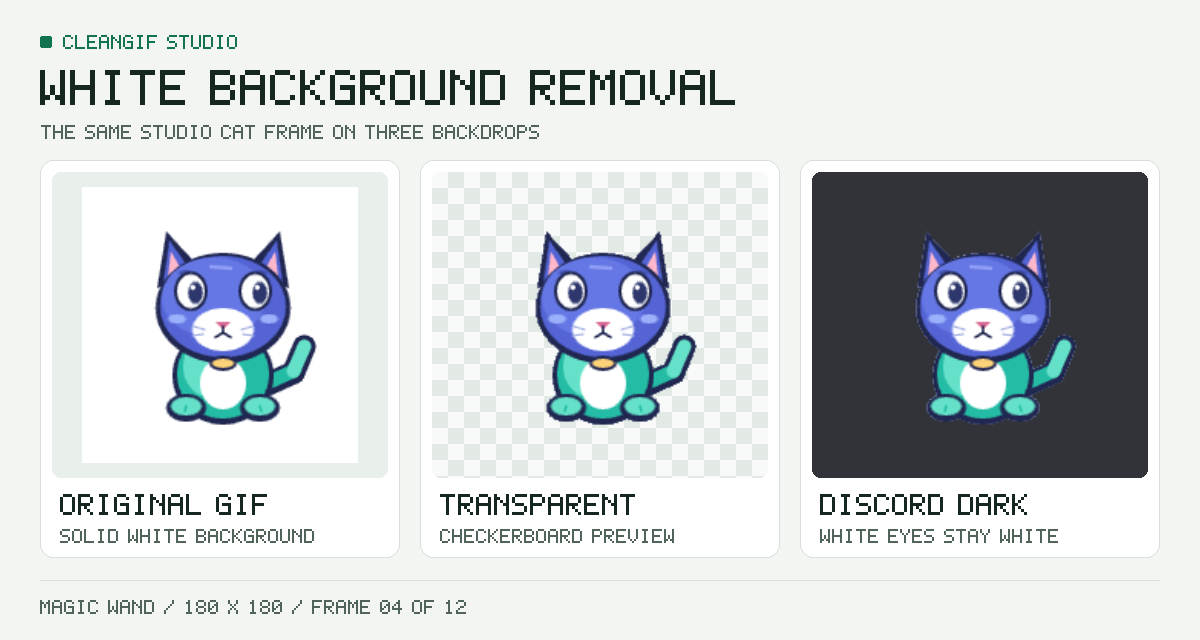
The cat example shows one original demo frame on the left and processed versions in the middle and right. Notice that the white eyes and belly remain visible against the checkerboard and simulated Discord #313338 surface. Your own subject may need different settings, especially if its outline touches the background.
Step 2: Choose a removal mode
Look at the background and the subject together before selecting a mode. With Magic Wand, select a connected region of the backdrop. This is often helpful for a white background around a character with white eyes: an interior white area that is disconnected from the chosen background can remain. Add points inside enclosed background pockets, such as the center of a letter, and check whether those pockets change as the animation moves.
Use Color Key when a uniform backdrop color does not appear in the subject. It targets matching colors across the image, so a matching shirt, logo, or highlight can be affected too. You can sample up to six colors if compression leaves several nearby shades. Start with a narrow Tolerance and raise it only enough to reach the unwanted backdrop.
For a green or blue studio screen, use Green Screen and select the matching key color; Custom provides another color choice. The green screen GIF remover and chroma-key guide walks through the rocket demo and explains where Spill suppression helps. If any mode removes a wanted detail, lower Tolerance, reconsider the chosen color, or start from a source with more separation.
Local GIF Keying vs. Cloud AI Video Subject-Removal Tools
CleanGIF is a free, zero-upload local option for GIFs with a clean solid, white, or green or blue-screen backdrop. Magic Wand uses connected flood-fill, Color Key matches colors, and Green Screen applies chroma keying. CleanGIF has no AI subject segmentation and does not accept video inputs. For complex real-world footage, fine hair, moving backgrounds, or video inputs, cloud AI video subject-removal tools or dedicated subject-segmentation editors are better suited.
White-background product GIF check
For a white-background product GIF, use Magic Wand on the connected outer white backdrop. Lower Tolerance if white labels or specular highlights start vanishing, and check moving frames and enclosed gaps. Inspect the exported animation against light and dark product page backgrounds. If a white product blends into the white backdrop, the connected selection may not separate them cleanly. CleanGIF does not swap in a replacement background color on export.
Step 3: Inspect the dark preview and refine edges
Play the animation and watch more than the first frame. A hand, tail, or flame can move over a background shade that was not obvious in the still view. Compare the checkerboard with the dark preview: the checkerboard exposes remaining opaque areas, while a dark background can reveal light fringes around the subject.
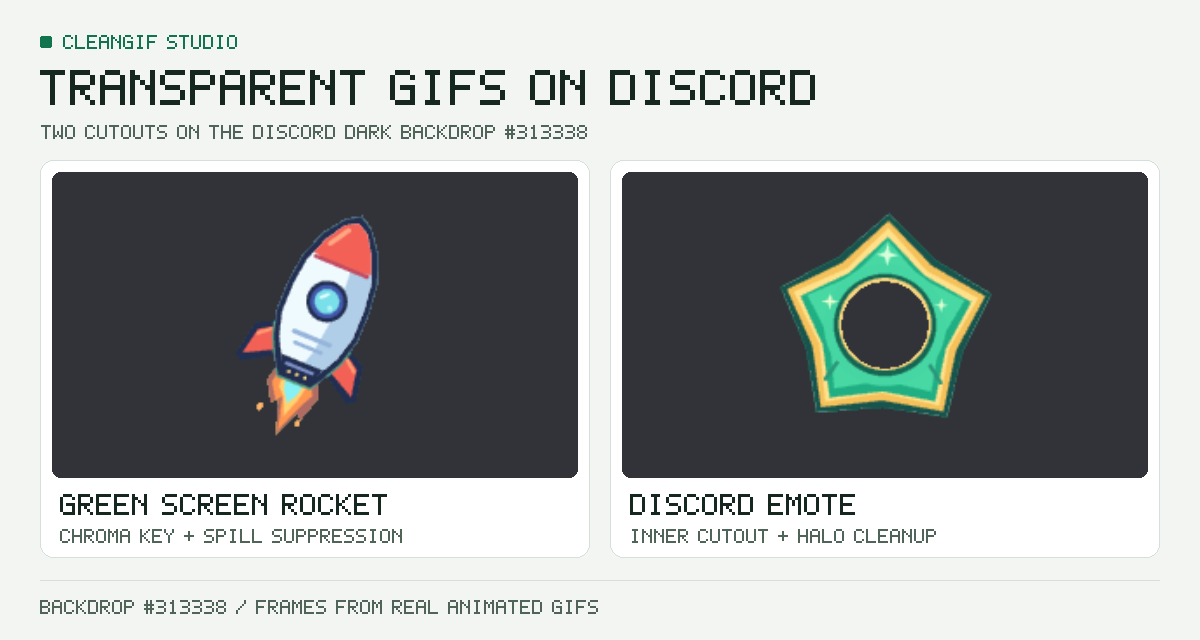
The rocket and sticker examples show processed frames on a simulated Discord background. The rocket illustrates chroma keying and Spill suppression; the sticker illustrates an inner cutout and Halo Cleanup. They are reference examples, so inspect your own frames instead of assuming that identical controls will produce identical edges.
Increase Halo Cleanup gradually if pale pixels remain along a boundary. It can reduce edge color contamination but cannot recreate detail missing from the source. Try a small Edge Shrink only when a narrow rim persists, then check thin outlines, lettering, eyes, and fast-moving parts. Too much shrinking can cut them away. For a green or blue reflection, compare Spill suppression on and off. The transparent GIF maker for Discord emotes and dark-mode stickers offers more guidance for checking the final destination.
Step 4: Export and verify timing and disposal
When the loop looks acceptable, export the animated GIF and open the downloaded file where it will be used. Compare the timing and the first and last frames. CleanGIF preserves frame delays and loop settings for animated exports: infinite, finite, or non-looping with no loop extension. Single-frame exports omit loop extensions. The browser preview repeats continuously and clamps very short delays to at least 20 ms; 0 ms is shown as 100 ms. A destination app may use different playback rules.
Some GIFs store only changed areas rather than complete independent frames. CleanGIF reconstructs disposal methods 1, 2, and 3 and exports with disposal method 2, helping prevent older positions from leaving ghost trails. GIF89a transparency is binary: each pixel is transparent or opaque. The transparent GIF palette has up to 255 visible colors plus one transparent index, so soft edges and gradients may look different from the source. If you need a still, save the current frame as a PNG; an animated GIF remains the animation export.
Animated GIF vs. still PNG vs. other transparent formats
CleanGIF reads GIF inputs only and exports a transparent animated GIF or a single still PNG frame. It does not accept video inputs or export APNG, animated WebP, or transparent video. Soft partial-alpha animations require another format and tool, and platform support varies.
Troubleshooting your transparent GIF
| Symptom | Likely cause | Fix |
|---|---|---|
| White eyes or lettering vanish | Selection reaches a matching subject color | Lower Tolerance or use Magic Wand on connected background areas. |
| A pale outline appears on dark | Light pixels remain around the subject | Increase Halo Cleanup gradually and compare the dark preview. |
| A thin edge disappears | Edge Shrink or Tolerance is too strong | Reduce the setting and inspect each moving pose. |
| Earlier positions leave trails | Frame disposal was mishandled by a viewer or source | Re-export the reconstructed frames and test the downloaded GIF in another viewer. |
| A gap inside a logo stays filled | The background pocket is disconnected | Add a selection point inside the gap and check the loop. |
| A file cannot load or export | File or decoded frames exceed limits, or device memory is tight | Shorten or resize a copy and close other memory-heavy tabs. |
CleanGIF works best with simple, distinct backdrops. Fine hair, translucent edges, moving shadows, and subject colors that match the background may remain difficult; no edge control can recover information that the source does not contain. For details about file handling and anonymous aggregate analytics, read the local GIF processing privacy policy.