Try the Green Screen Rocket demo
A green screen GIF can be a quick way to put a moving illustration over a different scene. Start with the built-in Green Screen Rocket demo if you want to explore the controls before choosing a file. Open the demo, let its frames load, and play the animation. The rocket is surrounded by a chroma backdrop; the goal is to clear that backdrop while keeping the rocket, flame, and outlines readable.
Choose Green Screen mode and use the green key color as the starting point. Increase Tolerance a little at a time until the broad backdrop clears. Watch the edges through several positions rather than judging only one frame: a darker patch near the flame or a compressed edge may behave differently as the rocket moves. Switch between the checkerboard and the Discord dark preview. The dark surface is especially useful for seeing green reflections on the rocket's bright rim.
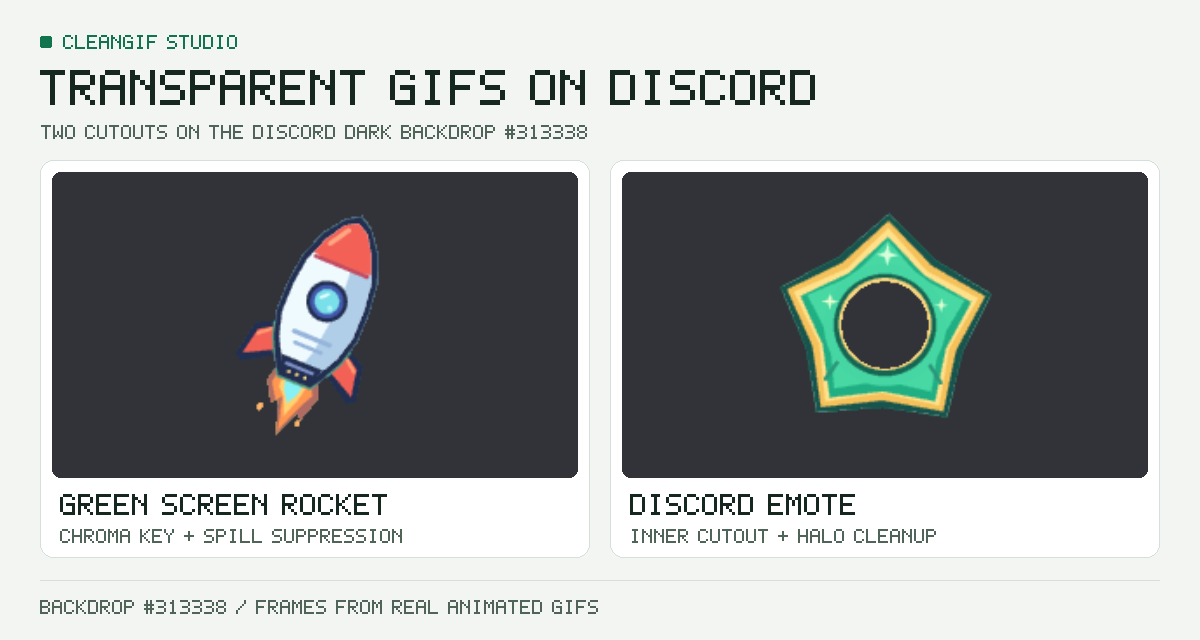
Turn on Spill suppression and compare the bright outlines before and after. Its purpose is to reduce unwanted green or blue color that has bounced onto the subject near the removed screen. It does not add an alpha channel or recreate a missing outline. If the rocket becomes dull, turn Spill suppression off and compare again, then keep checking the full loop. The accompanying illustration shows processed rocket and sticker demo frames against simulated Discord #313338, rather than a live preview of your own file.
Choose a chroma key color
To remove green screen from GIF files, select the key color closest to the backdrop, not a prominent color on the subject. Green Screen uses chroma cone keying: it compares colors around the chosen key hue and uses Tolerance to include more or less color variation. The Green, Blue, and Custom choices let you start from a green screen, a blue screen, or another chosen key color. Adjust gradually; compressed GIFs often contain neighboring shades instead of one perfectly uniform green.
A wider selection can clear uneven background pixels, but it can also reach a subject's green clothing, lettering, leaves, or other details. A blue screen can have the same problem with blue objects. If those details are essential, a source with a more distinct backdrop is usually the safer starting point. When the backdrop is a flat color but the subject has matching details, try the connected selection in Magic Wand instead and add points only where the background is enclosed.
A practical starting point for settings
These starting points are suggestions, not universal values. The best setting depends on the source palette and how its frames were compressed.
| Situation | Starting choice | What to inspect |
|---|---|---|
| Even green backdrop | Green Screen, Green key, low Tolerance | Raise Tolerance gradually until most backdrop pixels clear. |
| Blue backdrop | Green Screen, Blue key | Check blue outlines and accessories for accidental removal. |
| Different chroma color | Green Screen, Custom key | Compare the selected color with the backdrop across the loop. |
| Colored rim on a bright object | Enable Spill suppression | Compare highlights and edges on the dark preview. |
| Narrow remaining outline | Try Halo Cleanup, then a small Edge Shrink | Stop if fine lines or small details begin to disappear. |
Spill suppression can reduce green or blue reflections on the edges of cartoons, stickers, and objects. It cannot restore translucent edges, separate fine hair cleanly in every frame, remove moving shadows reliably, or distinguish green clothes and details from an identical green backdrop. GIF itself stores binary transparency, so a soft, partly transparent boundary cannot be retained as partial alpha. Keep an untouched source and compare the export against the intended background before deciding whether this method suits the clip.
Export and check the animation
Once the key looks consistent, inspect the entire animation again and download an animated GIF. The same removal settings apply across the frames. CleanGIF reconstructs input disposal methods 1, 2, and 3 and exports using disposal method 2 to reduce ghost trails. Export preserves frame delays and loop settings: infinite, finite, or non-looping with no loop extension. Single-frame exports omit loop extensions. The browser preview repeats and may display very short delays differently, so check the saved GIF in its destination too.
GIF transparency uses up to 255 visible colors plus one transparent index. Detailed gradients may change when converted to that palette. If you only need one image, save the current frame as a still PNG instead; that still is not an animated export.
File limits and privacy
Open one GIF at a time, up to 50 MiB, 2,400 pixels per side, 300 frames, and 384 MiB of decoded RGBA frame data. Device memory may impose a lower practical ceiling, particularly on a phone with other tabs open. GIF87a and GIF89a files are supported, including interlaced GIFs. If a file is too large, shorten or resize a copy and try again. Keep the tab open while processing and save the result from your browser.
Processing runs 100% locally in your browser; your GIF is not uploaded for processing. CleanGIF uses PVUV for anonymous aggregate site analytics.
For solid or white backdrops, use the GIF background remover. For chat stickers and dark surfaces, try the transparent GIF maker for Discord, Twitch, and Slack. For the complete sequence from opening a file to checking the download, follow the step-by-step guide to make a GIF background transparent. Read the browser-local GIF processing privacy policy for file-handling and analytics details.